To be effective to begin with, the ADE Module needs to be properly configured.
1 Module enablement
The ADE module is disabled by default, so the first step is to enable it by selecting Enabled on the enable/disable switch.
Note: Clicking on the info  icon in the top right corner will display a context help panel.
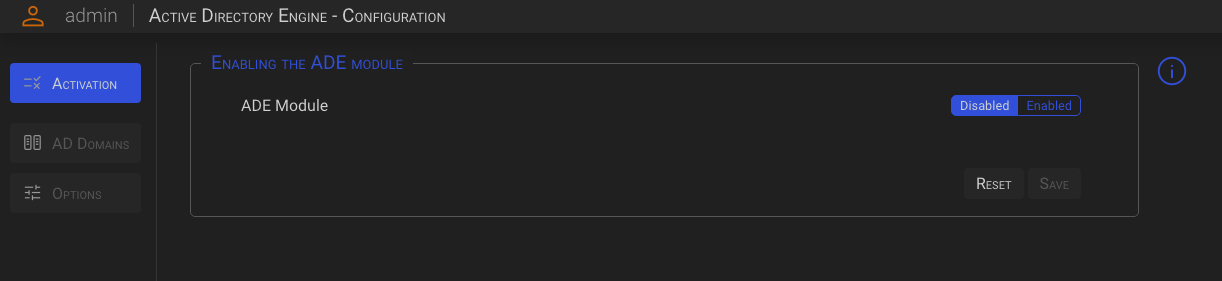
After selecting Enable, the Probe Selection area will appear.
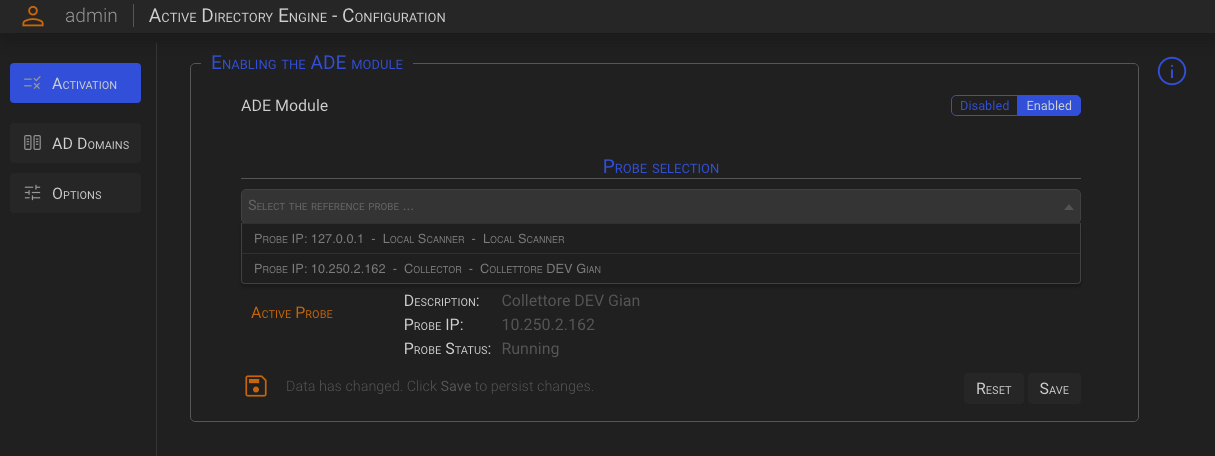
Select the desired Probe and click the Save button to consolidate changes and enable the module.
Probe Selection
The selected probe will collect and send Active Directory data to the SGBox instance.
The probe can be either a remote SGBox Collector or the local SGBox appliance. Therefore, if your installation does not use any remote Collectors, select the Local Scanner probe.
2 AD Domains
Clicking the AD Domains button on the left column will open the AD Domains configuration panel.
Note: Click the info icon in the top right corner to display a full context help panel.
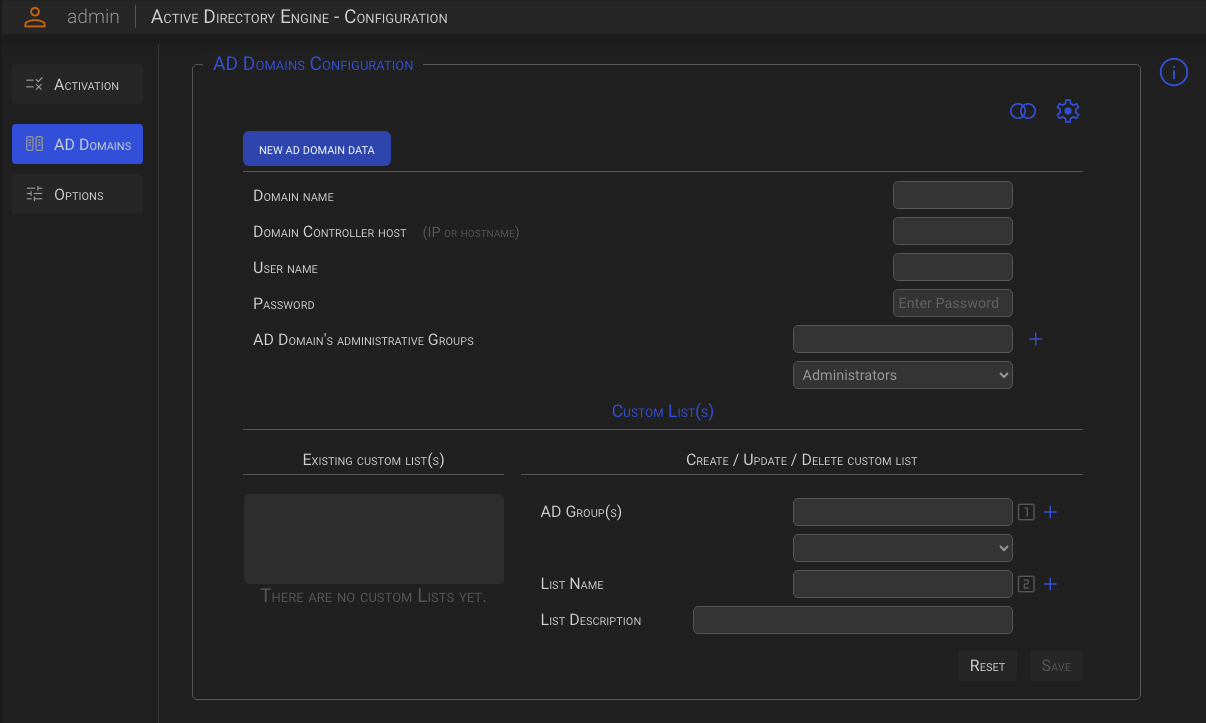
2.1 Domain Actions
Depending on the case, the following action icons appear in the top right corner:
2.1.1 Bind
 By clicking this icon, the system will try to bind to the Active Directory Domain to verify the specified credentials.
The bind operation result will be displayed next to the user name.
By clicking this icon, the system will try to bind to the Active Directory Domain to verify the specified credentials.
The bind operation result will be displayed next to the user name.

This action is available only when the Local Scanner probe is selected.
2.1.2 Engine
 By clicking this icon, you can initiate an on-demand backend cycle execution. This feature is particularly useful in the following situations:
- After adding the first domain or an additional one, the data will be populated immediately without waiting for the next backend schedule.
- To ensure that the module data is updated in a timely manner to reflect recent changes to the Active Directory, such as the addition or removal of custom groups, without waiting for the next backend schedule.
This action is available only when the Local Scanner probe is selected.
2.1.3 Add
 Click this icon to add a new Active Directory Domain to the monitoring system.
2.1.4 Delete
 Clicking this icon will display the AD Domains Deletion pop-up panel.
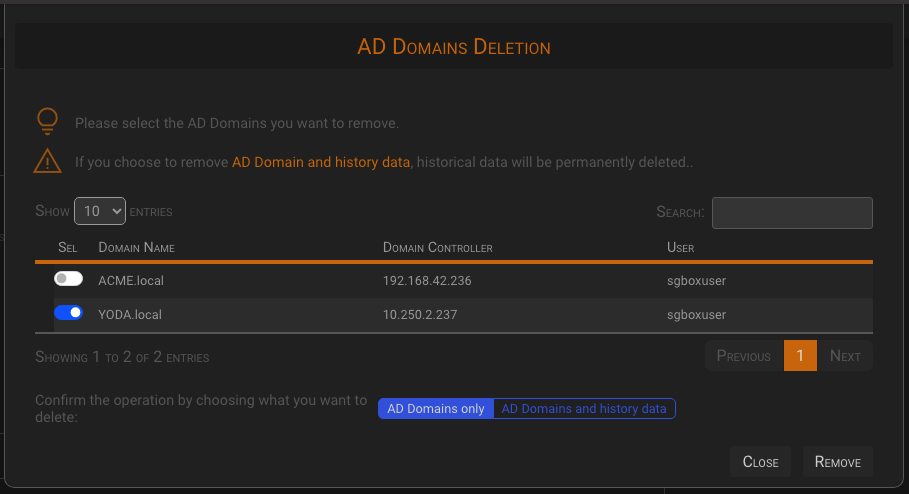
On the AD Domains Deletion panel:
- Select the AD domain(s) you want to remove from the monitoring by triggering the selection switch on the left of the Domain name.
- Confirm the action by selecting the AD Domains only or the AD Domains and history data option.
- Click the Remove button to remove the selected Domain(s)
2.2 Domain configuration
| Domain data | Description |
|---|---|
| Domain name | Set the name of the Domain to be monitored. Please specify the full Domain name (i.e my_domain.it). If your Domain(s) have multiple domain controllers, add only one DC for each Domain. |
| Domain Controller host | Set the host name of the domain controller to connect to. Domain Controller host can be specified using both the IP address or the FQDN (i.e. myhost.mydomain.local) If you use an FQDN, please ensure that the SGBox VM can resolve the name by specifying the correct DNS or adding the appropriate entry to the hosts file. |
| User name | Set the user name used to bind the Active Directory. |
| Password | Set the user password used to bind the Active Directory. |
| AD Domain’s administrative Groups | This allow to specify which AD Groups containing administrative users. The system will recursively extract the users beloging to the specified groups, on an hourly basis, providing an always updated Administrator users list that can be used in the Correlation or Query modules to spot Administrative related events/incidents. |
Domain User
There is no need of any special permission for this user, a simple domain membership with a never expire password will be enough.
For greater security, SGBox recommends to disable the RDP logon for this service user by checking the Deny this user permission to log on to Remote Destop Session Host server checkbox in the Remote Desktop Service Profile tab of the Active Directory user Properties panel.
AD Domain's administrative Groups
The generated list is also used by ADEngine itself to run Administrative users related checks and comes filled with the Administrators group defined by default. (this will include users in the “Domain Admins”, “Enterprise Admins” and “Schema Admins” groups)
SGBox recommends that you also consider those groups that contain users who, while not having administrative rights at the AD level, nevertheless have administrative powers in relation to particularly sensitive applications.
2.3 Custom List(s)
This allows to create custom lists containing users recursively belonging to the specified group(s). These list(s) can be useful in the Correlation or Query modules to spot specific events related to the users belonging to certain groups.
The Current custom list(s) box, on the left, contains the currently defined custom lists, while on the right is it possible to create new lists or update or delete existing ones.
Click the info icon in the top right corner to display a detailed configuration help panel.
Custom Lists
- Custom lists are an important tool for receiving alerts about events involving users in specific groups.
- Custom lists are updated hourly by the backend, providing an always updated source.
2.4 Default Lists
By default, the system extracts the following lists, which are ready to be used by the correlation rules within the LCE module, as well as in the events/logs and threat intelligence queries.
| Name | Description |
|---|---|
| Administrative Users | The list of users belonging to the specified administrative groups (see the ‘AD Domain’s administrative Groups’ configuration option) |
| Disabled Administrators | The Disabled Administrators list |
| Disabled Users | The Disabled Users list |
| Inactive Administrators | The Inactive Administrators list (see the ‘Administrators inactive days’ configuration option) |
| Inactive Users | The Inactive Users list (see the ‘Administrators inactive days’ configuration option) |
| Account Operators | Members can administer domain user and group accounts |
| Administrators | Administrators have complete and unrestricted access to the computer/domain |
| Backup Operators | Backup Operators can override security restrictions for the sole purpose of backing up or restoring files |
| Cert Publishers | Members of this group are permitted to publish certificates to the directory |
| Certificate Service DCOM Access | Members of this group are allowed to connect to Certification Authorities in the enterprise |
| Cloneable Domain Controllers | Members of this group that are domain controllers may be cloned. |
| Cryptographic Operators | Members are authorized to perform cryptographic operations. |
| DHCP Administrators | Mmbers who have administrative access to the DHCP Service |
| DHCP Users | Members who have view-only access to the DHCP service |
| DnsAdmins | DNS Administrators Group |
| Domain Admins | Designated administrators of the domain |
| Domain Computers | All workstations and servers joined to the domain |
| Domain Controllers | All domain controllers in the domain |
| Domain Guests | All domain guests |
| Domain Users | All domain users |
| Enterprise Admins | Designated administrators of the enterprise |
| Enterprise Key Admins | Members of this group can perform administrative actions on key objects within the forest. |
| Enterprise Read-only Domain Controllers | Members of this group are Read-Only Domain Controllers in the enterprise |
| Event Log Readers | Members of this group can read event logs from local machine |
| Group Policy Creator Owners | Members in this group can modify group policy for the domain |
| Hyper-V Administrators | Members of this group have complete and unrestricted access to all features of Hyper-V. |
| Incoming Forest Trust Builders | Members of this group can create incoming, one-way trusts to this forest |
| Key Admins | Members of this group can perform administrative actions on key objects within the domain. |
| Network Configuration Operators | Members in this group can have some administrative privileges to manage configuration of networking features |
| Performance Log Users | Members of this group may schedule logging of performance counters, enable trace providers, and collect event traces both locally and via remote access to this computer |
| Performance Monitor Users | Members of this group can access performance counter data locally and remotely |
| Print Operators | Members can administer printers installed on domain controllers |
| Protected Users | Members of this group are afforded additional protections against authentication security threats. See http://go.microsoft.com/fwlink/?LinkId=298939 for more information. |
| Read-only Domain Controllers | Members of this group are Read-Only Domain Controllers in the domain |
| Remote Desktop Users | Members in this group are granted the right to logon remotely |
| Schema Admins | Designated administrators of the schema |
| Server Operators | Members can administer domain servers |
| Storage Replica Administrators | Members of this group have complete and unrestricted access to all features of Storage Replica. |
| Users | Users are prevented from making accidental or intentional system-wide changes and can run most applications |
3 Options
Clicking the Options button on the left column will open the module options panel.
Note: Click the info icon in the top right corner to display a full context help panel.
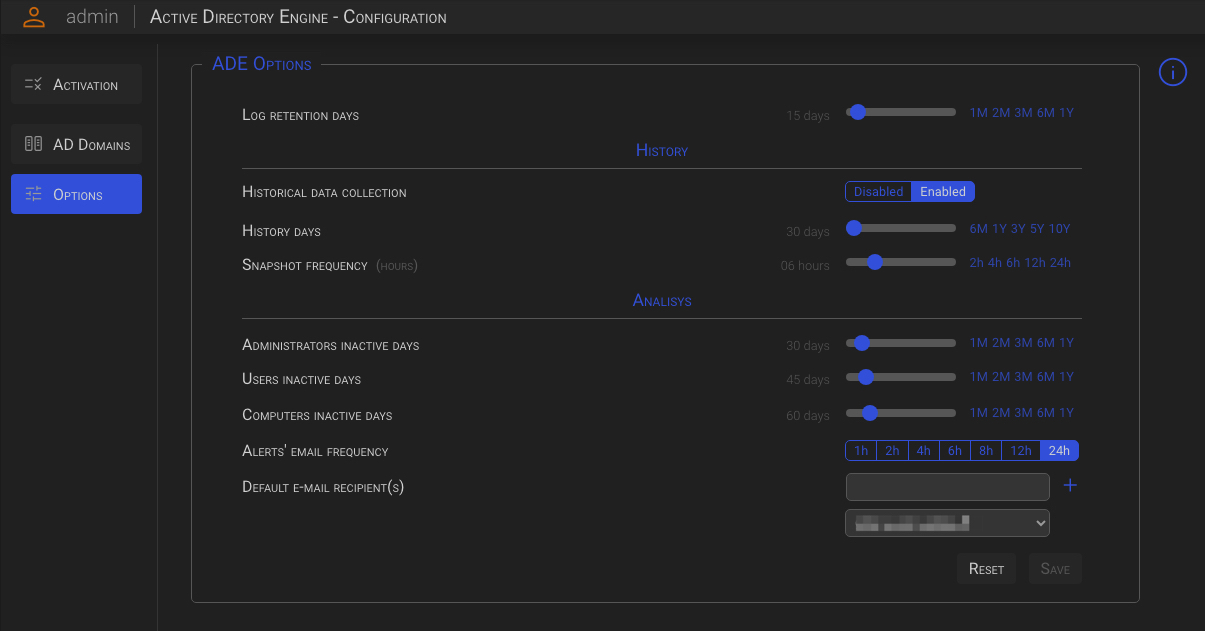
| Option | Description |
|---|---|
| Log retention days | Set the number of days you want to retain ADEngine application logs. These logs does not have any impact on user activities, they simply will help SGBox operators to troubleshoot the application in case of malfunctioning. |
| Historical data collection | Enable, or disable, historical data collection. |
| History days | Set the number of days we want to retain historic information. This determine how long in the past we can go with reports and comparative analysis. History records older than the specified number of days will be automatically cleaned up by the system. |
| Snapshot frequency | Set the Snapshot execution frequency (in hours). This determine how many point in time you will have in your data history. |
| Administrators inactive days | Defines the number of days of inactivity of an Administrative user, after which the administrative user is considered inactive. |
| Users inactive days | Defines the number of days of inactivity of a non Administrative user, after which the user is considered inactive. |
| Computers inactive days | Defines the number of days of inactivity of a computer, after which the computer is considered inactive. |
| Alerts’ email frequency | Defines how often alert notification emails are sent. |
| Default e-mail recipient(s) | Allows to specify one or more e-mail recipients to which generated alerts will be sent by default. Is it also possible to associate an e-mail recipient to a single alert directly from the Alarm Dashboard. |
To add a new recipient simply fill the Default e-mail recipient(s) field and click on the add icon on the right.
Historical data collection
Enabling this option will increase disk space usage. The amount of space used depends on several factors, including the number of objects in the monitored Active Directories, how frequently snapshots are taken, and how long the history is retained.
Default e-mail recipient(s)
Default recipient changes will take effect with next Active Directory statistics collection (at the 40-minute mark of every hour) To avoid loss of alert messages SGBox recommends to configure at least one service recipient.