1 The Alarm Dashboards
The Alarm Dashboards enable users to establish customized threshold settings and adjust notification preferences for individual dashboard elements.
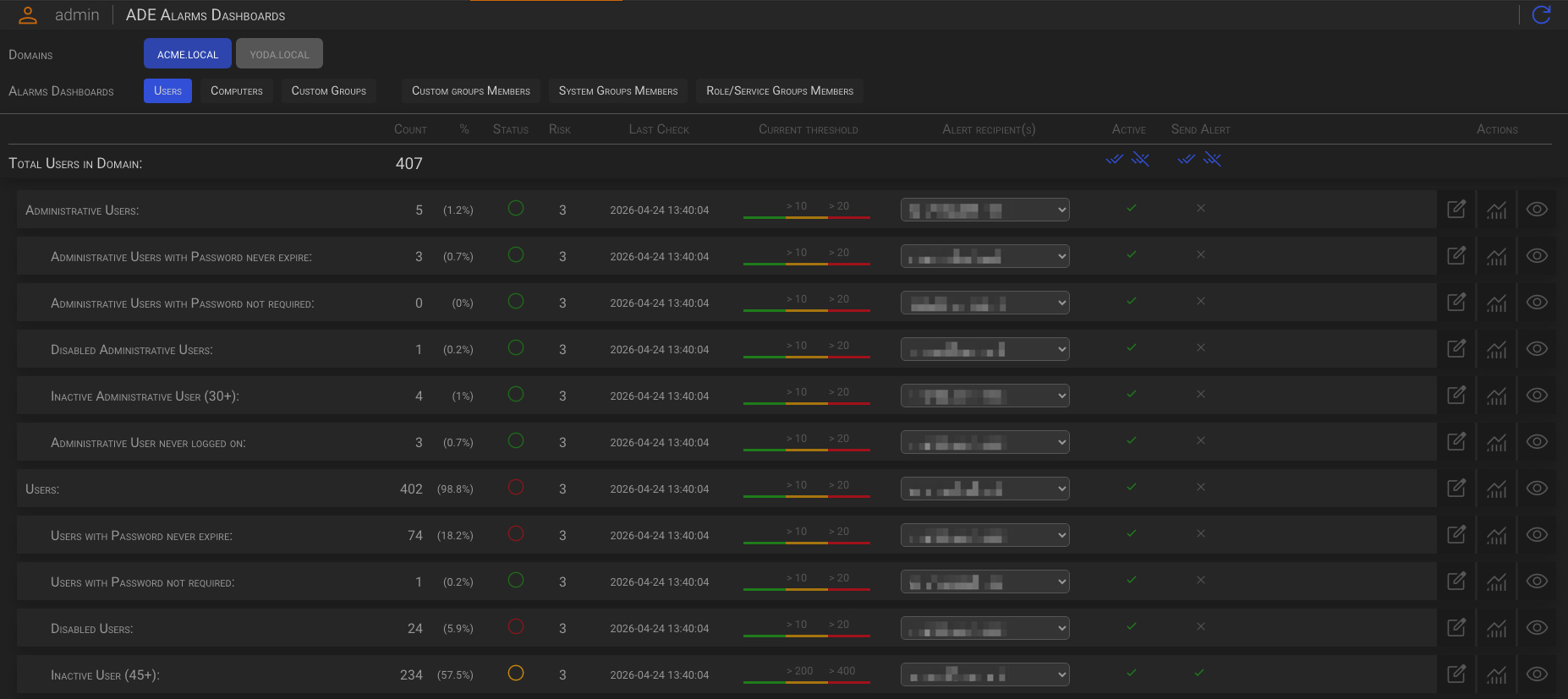
There are multiple dashboards available for each AD Domain; let’s review their functionality in detail.
1.1 Global Dashboards
The global dashboards facilitate the management of generic thresholds for Active Directory users, computers, and group objects.
| Dashboard | Description |
|---|---|
| Users | This dashboard enables the management of generic thresholds for the entire user base. |
| Computers | This dashboard enables the management of generic thresholds for the entire computer base. |
| Custom Groups | This dashboard enables the management of generic thresholds for the entire groups base. |
1.1.1 Users Dashboard
In the Users Dashboard you can set thresholds ad alerts for the following KPIs:
- Number of
- Administrative Users
- Administrative Users with Password never expire
- Administrative Users with Password not required
- Disabled Administrative Users
- Inactive Administrative User (30+)
- Administrative User never logged on
- Users
- Users with Password never expire
- Users with Password not required
- Disabled Users
- Inactive User (45+)
- Users never logged on
- Users with adminCount = 1
- Administrative Users
1.1.2 Computers Dashboard
In the Users Dashboard you can set thresholds ad alerts for the following KPIs:
- Number of
- Domain Controllers
- Workstation and Server
- Computers with old last logon (60+)
- Different Operating Systems
- Obsolete Operating Systems
- Orphaned or Misplaced Domain Controllers
1.1.3 Groups Dashboard
In the Groups Dashboard you can set thresholds ad alerts for the following KPIs:
- Number of
- Total Custom Security Groups
- Local Security Groups
- Global Security Groups
- Universal Security Groups
- Empty Local Security Groups
- Empty Global Security Groups
- Empty Universal Security Groups
- Total Custom Distribution Groups
- Local Distribution Groups
- Global Distribution Groups
- Universal Distribution Groups
- Empty Local Distribution Groups
- Empty Global Distribution Groups
- Empty Universal Distribution Groups
- Total Custom Security Groups
1.2 Groups Control Dashboards
The Groups Control dashboards facilitate the management of specific thresholds for each Custom, System or Role/Service groups.
| Dashboard | Description |
|---|---|
| Custom groups Members | This dashboard facilitate the management of specific thresholds for each Custom group. |
| System Groups Members | This dashboard facilitate the management of specific thresholds for each System group. |
| Role/Service Groups Members | This dashboard facilitate the management of specific thresholds for each Role/Service group |
1.2.1 Custom groups Members
In the Custom Groups Members dashboard, you can establish thresholds and alerts for the number of group members for each custom group you’ve defined in your AD domain, for example:
- Delivery
- SocialMedia
- Security
- [ … ]
1.2.2 System Groups Members
In the System Groups Members dashboard, you can establish thresholds and alerts for the number of group members for each system group defined in your AD domain.
- Builtin (OS)
- Access Control Assistance Operators
- Account Operators
- Administrators
- Backup Operators
- Certificate Service DCOM Access
- Cryptographic Operators
- Distributed COM Users
- Event Log Readers
- Guests
- Hyper-V Administrators
- IIS_IUSRS
- Incoming Forest Trust Builders
- Network Configuration Operators
- Performance Log Users
- Performance Monitor Users
- Pre-Windows 2000 Compatible Access
- Print Operators
- RDS Endpoint Servers
- RDS Management Servers
- RDS Remote Access Servers
- Remote Desktop Users
- Remote Management Users
- Replicator
- Server Operators
- Storage Replica Administrators
- Terminal Server License Servers
- Users
- Windows Authorization Access Group
- Core Domain (Critical)
- Cert Publishers
- Cloneable Domain Controllers
- Denied RODC Password Replication Group
- Domain Admins
- Domain Computers
- Domain Controllers
- Domain Guests
- Domain Users
- Enterprise Admins
- Enterprise Key Admins
- Enterprise Read-only Domain Controllers
- Group Policy Creator Owners
- Key Admins
- Protected Users
- RAS and IAS Servers
- Read-only Domain Controllers
- Schema Admins
1.2.3 Role/Service Groups Members
In the Role/Service Groups Members dashboard, you can establish thresholds and alerts for the number of group members for each role/service group defined in your AD domain, for example:
- Access-Denied Assistance Users
- DHCP Administrators
- DHCP Users
- DnsAdmins
- DnsUpdateProxy
- […]
2 How to operate dashboards
All dashboards are designed to be intuitive and can be operated in a similar manner. Let’s review the operational procedures.
2.1 Dashboadrs columns
| Column | Description |
|---|---|
| Object | The object or object category |
| Count | The current quantity of objects or objects within the category. |
| % | This is defined as the percentage of the quantity of objects or objects within the category relative to the total number of items. |
| Status | This is an indicator of the object number respect the defined threshold. Green means below the threshold Yellow means between the low and the high threshold Red means over the high threshold |
| Risk | The defined risk level for the object or object category |
| Last Check | The date and time of the last check. |
| Current threshold | The object or object category threshold low and high values |
| Alert recipient(s) | The list of the defined recipients to whom the alerts will be sent |
| Active | The object or object category is checked against its threshold once per hour when the status is green. |
| Send Alert | The object or object category’s alert function status: when the status is green, the alerts will be sent to the recipients you have defined. |
| Actions |  Edit object or object category settings Edit object or object category settings View object or object category statistics View object or object category statistics View the detailed list of object or object within the category View the detailed list of object or object within the category |
Active status
When the Active status is disabled, the object or category count will not be checked against the defined threshold. Alerts will not be sent to the defined recipients.
Bulk actions
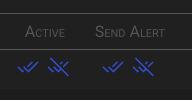
By clicking the one of the icons on the left will enable or disable the Active or the Alert functions for all the objects on the dashboard.
You can individually enable/disable objects or object categories by editing an object or an object category.
2.2 Edit
Clicking the icon in the action column of an object or an object category will open the edit panel for that object.

On the edit panel you can:
- Specify one or more Organizational Unit (OU) to exclude from the statistics calculation.
- Set your own specific threshold for the object or object category
- Set the risk level for that specific object or object category
- Add one or more recipients, in addition to the default ones, for that specific object or object category
- Individually enable or disable both the Active and the Alert function for that specific object or object category
2.3 Statistics
To get some help in the threshold definition, you can click on the icon to open the object or the object category statistic panel.

2.4 Details
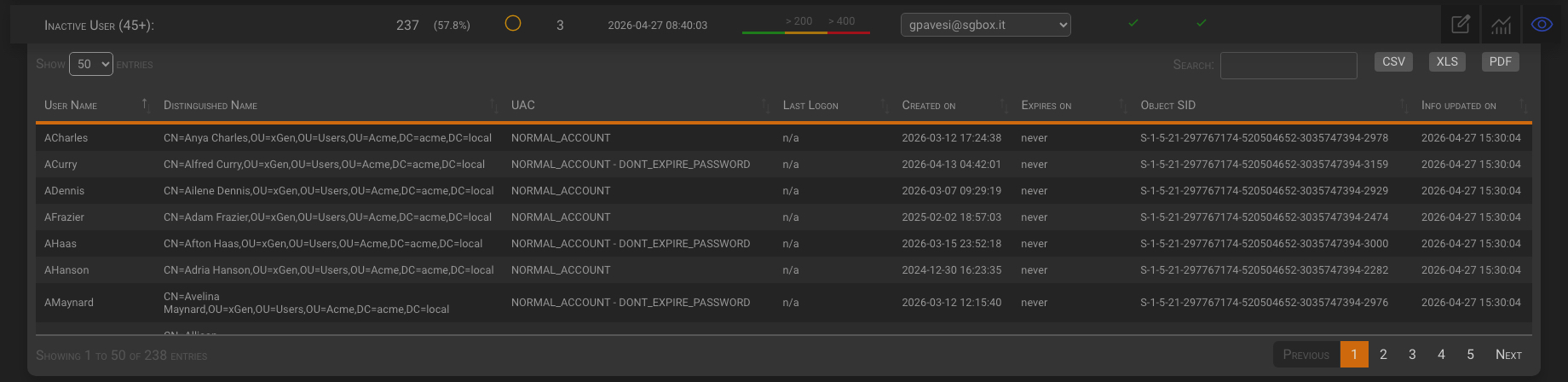
Finally, by clicking on the icon you can have the detailed list of the object or object category items.
Note
Please note that these last three panels can be opened together to see the whole picture of an object or category of objects.